To schedule Instagram posts with Meta Business Suite, connect your Instagram professional account to a Facebook Page, open Business Suite on a computer, click Create post, choose your Instagram account as the destination, add your media and caption, then open the scheduling options and pick a date and time. The post publishes automatically at that moment, with no reminder or phone notification needed. The same tool schedules Reels and Stories, and its Planner shows everything you have queued on a calendar.
This guide covers the setup, the step by step for each format, what Business Suite can and cannot do, and how to build a weekly scheduling routine that keeps your posting pace steady.
What do you need before scheduling with Meta Business Suite?
Three things have to be in place:
- An Instagram professional account. Business or Creator both work. You can switch a personal account for free under Settings, in the account type section.
- A Facebook Page. Business Suite organizes everything around Pages. If you do not have one, create a simple Page for your brand. It does not need to be active.
- A connection between the two. In Business Suite, go to Settings, then the accounts section, and connect your Instagram account. You can also link them from the Instagram app under the Accounts Center.
Once connected, you will see your Instagram account listed next to the Facebook Page at the top of Business Suite. If it does not appear, log out of both, log back in, and repeat the connection. Most setup problems come from being logged into a different Facebook profile than the one that manages the Page.
How do you schedule a feed post or carousel step by step?
- Go to business.facebook.com on a computer, or open the Meta Business Suite app.
- Click Create post.
- Under the placement options, select your Instagram account. Uncheck Facebook if you only want to post to Instagram.
- Add your photos or videos. For a carousel, add several images in the order you want them to appear.
- Write your caption, including any hashtags and mentions. You can add a location as well.
- Use the preview on the right side to check how the post will look on Instagram.
- Find the scheduling options next to the publish button and choose Schedule.
- Pick the date and time, then confirm.
The time shown is based on your computer's time zone. If your audience lives somewhere else, convert before you choose. A post meant for followers on the West Coast at 6 p.m. needs to be set for 9 p.m. if you are scheduling from the East Coast.
Can you schedule Reels and Stories in Business Suite?
Yes. Reels have their own creation flow:
- Click Create reel, choose your Instagram account, upload the video and add a caption.
- Pick a cover frame or upload a custom cover so the Reel looks good on your grid.
- Open the scheduling options and set the date and time.
Stories are created with Create story. You can upload images or short videos and schedule them the same way. Interactive stickers, such as polls and question boxes, are more limited on desktop than in the Instagram app, so if a Story depends on a sticker, create that one in the app instead.
Business Suite works best for content that is finished before it is scheduled. Trending audio, filters and in-app editing tools are mostly available only when you post directly from Instagram. If a Reel relies on a trending sound, add it in the app and use Instagram's own scheduling instead.
Is Business Suite better than Instagram's built in scheduler?
Each has strengths. Instagram lets you schedule feed posts and Reels from the app under Advanced settings, just before you share. That is convenient for content you already edited on your phone, and it keeps all in-app features available.
| Feature | Meta Business Suite | Instagram app |
|---|---|---|
| Works on desktop | Yes | No |
| Calendar view of all scheduled content | Yes, in Planner | Basic list |
| Post to Facebook at the same time | Yes | Optional cross posting |
| Trending audio and in-app effects | Limited | Full |
| Best for | Batching a full week | Single posts made on the phone |
Many people use both. They batch carousels and finished Reels in Business Suite on Sunday and schedule the occasional trend based Reel from the app during the week.
How do you use the Planner to manage your posting schedule?
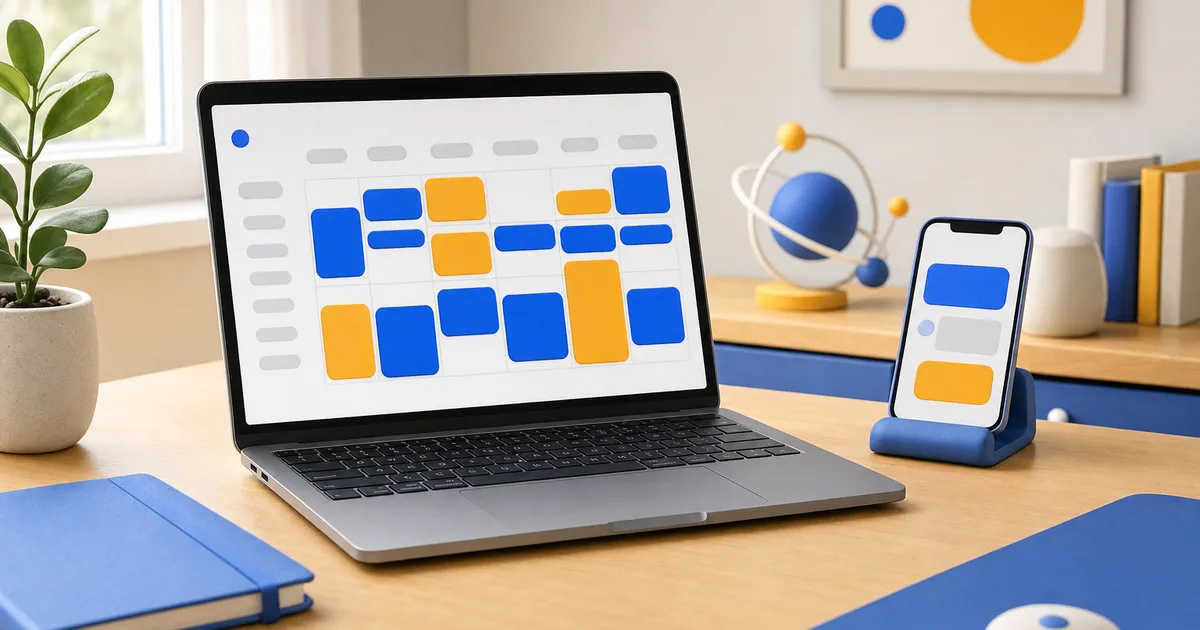
The Planner shows all scheduled and published content on a weekly or monthly calendar. From there you can:
- Drag a scheduled post to a new day or time.
- Open any post to edit the caption or swap the media before it goes live.
- Spot gaps in your week at a glance.
- See suggested times based on when your audience has been most active.
Treat the Planner as your flight schedule. When you can see the full week, it becomes obvious if you stacked three posts on Tuesday and left Thursday empty. An even pace is easier to keep, and it also gives you cleaner data when you compare posts later.
What is a simple weekly scheduling routine?
Here is a routine that takes about two hours once you get used to it:
- Sunday, 30 minutes: review last week in Insights and note which posts led on reach, saves and shares.
- Sunday, 60 minutes: finish captions and covers for the week's posts, then schedule them in Business Suite at your best windows.
- Sunday, 15 minutes: open the Planner and check the spacing. Move anything that is crowded.
- Weekdays, 15 minutes after each post: reply to the first comments. Scheduling handles the publishing, but conversation still needs a person.
The value of this routine is predictability. Your posts go out at the planned minute, your audience learns when to expect you, and you are not scrambling to post from a parking lot at 7 p.m.
Why did my scheduled post not publish?
If a post stays in scheduled status after its time, check these common causes:
- The connection between Instagram and the Facebook Page expired. Reconnect them under Settings.
- Your Instagram password changed, which can break the link until you log in again.
- The media did not meet Instagram's requirements, such as an unsupported aspect ratio or a video that was too long for the chosen format.
- The account has a restriction. Check Account Status in the Instagram app.
Business Suite usually shows a notification when a post fails. Fix the cause, then reschedule or publish it manually.
Does scheduling affect reach on Instagram?
Meta has stated that scheduled posts are not penalized compared with posts published by hand. Reach depends on the content and on how people respond to it in the first hours. What scheduling does change is your consistency, which over time affects reach more than almost anything else you control.
If you are launching a new account and want the first scheduled posts to land on a profile that already has some visitors, some owners pair their first weeks of scheduling with a starter package of Instagram followers. Scheduling keeps the pace, and the rest comes from the posts themselves.
Frequently asked questions
Is Meta Business Suite free?
Yes. It is free for anyone who manages a Facebook Page and a connected Instagram professional account.
Can I schedule posts for a personal Instagram account?
Business Suite requires a professional account. Switching is free and you can switch back later.
Can I edit a post after it is scheduled?
Yes. Open it from the Planner or the content list, change the caption, media or time, and save.
Can I tag people and add a location to scheduled posts?
Yes, both are available when you create the post in Business Suite.
Can I schedule the first comment?
Business Suite does not reliably support a scheduled first comment. Add it by hand right after the post goes live.
Does Business Suite work on a phone?
Yes, there is a Meta Business Suite app, though batching a week of posts is faster on a computer.